PST Walker Viewer
- Oct 17, 2024
- Email Viewer
Open Outlook Data Files (.pst and .ost)
Install or run the portable version of PST Walker Viewer. During the first run, the application displays a form with Outlook Data Files (.pst and .ost) indexed by Outlook's search and history of attached .pst and .ost files. The form includes two tabs: 'Data Files,' which lists files in the user profile directory, and the 'Catalog' tab, which displays files from other locations. To open these files, you may need to first close Outlook. Review and select the files in the list, and then click the 'Open' button.
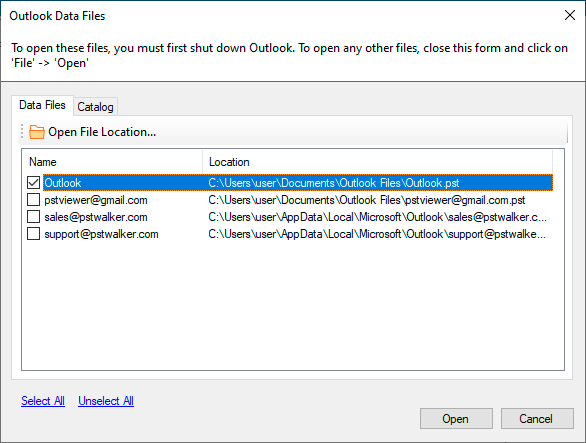
To open any other Outlook data files, just close this form and click on 'File' -> 'Open.' In the 'Open File' dialog, navigate to the location with .pst or .ost files, and select one or multiple files by holding down the Ctrl or Shift key.
For each opened PST or OST file, an option form will be displayed, allowing you to configure settings. There are two options for opening a file:
- Like Microsoft Outlook: Quick scan using file metadata.
- Extensive Scan: Full file scan to find email and folder records. This option can be used to display Outlook's internal structure or recover data from damaged and corrupted files. Note: processing takes longer than the 'Like Microsoft Outlook' option.
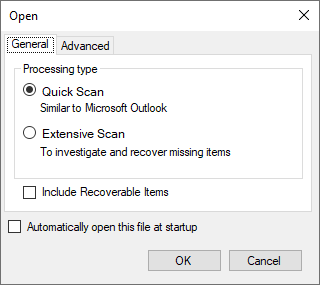
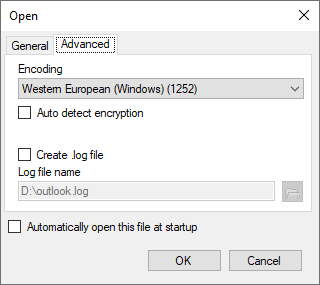
- To suppress this dialog, you can set <add key="Options.Show" value="False"/> in the pstwalker.exe.config file.
You also have the option to select:
- Find hard-deleted and orphaned items: to recover permanently deleted emails and folders.
- Automatically open this file at startup: to open the file each time PST Viewer is run.
- Auto-detect encryption: can be used if your file won't open in Outlook.
- Create a log file: to record processing logs; this file may be needed to identify errors during processing.
- Encoding: the default encoding for emails.
When the .pst or .ost file is opened, you'll feel like you're using your email program! All your emails, notes, calendar events, tasks, contacts, journals, and folders are displayed on your screen.
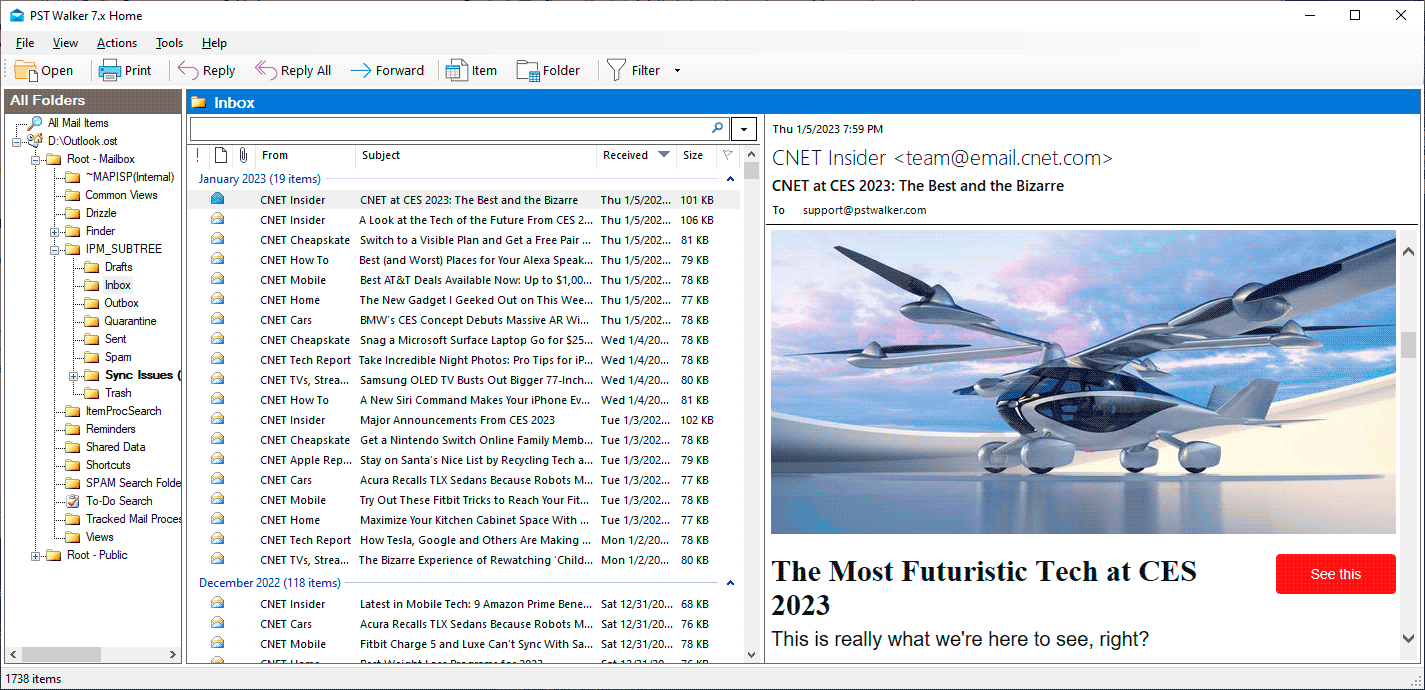
To close an Outlook data file, right-click the mailbox in the All Folders pane and select 'Close' from the dropdown menu, or click 'File' -> 'Close All'.
Open Outlook items and embeded emails (.msg and .eml)
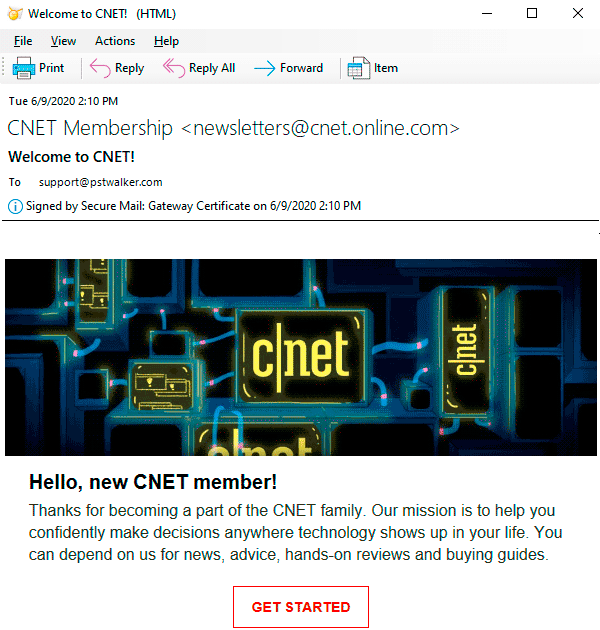
If you want to open an email or an embedded email in a new window, double-click the email or attachment in the list. To open multiple Outlook items, select several items, right-click, and choose 'Open Items' from the dropdown menu. You can select numerous messages using standard Ctrl+left-click and Shift+left-click commands. Additionally, you can open MSG and EML files in Windows Explorer by double-clicking the respective file.
Change Encoding or Localization
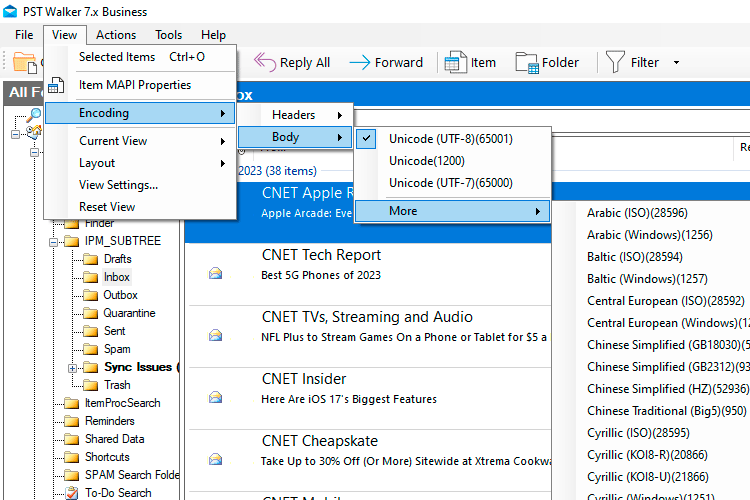
You may need to change message encoding because the Exchange server does not correctly update the character set in the PR_BODY_HTML or PR_RTF_COMPRESSED property. Therefore, the message body is garbled when PST Walker Viewer tries to display it. Changing the encoding of a message is quite easy: select a message, click 'View' -> 'Encoding' to check the current encoding in use. Then, choose the 'More' option to select the appropriate encoding.
To change the UI language, go to the menu 'Tools' -> 'Language' and select from the following options: Deutsch, English, Español, Français, Italiano, Nederlands, Português Brasileiro.
Customize or change a view
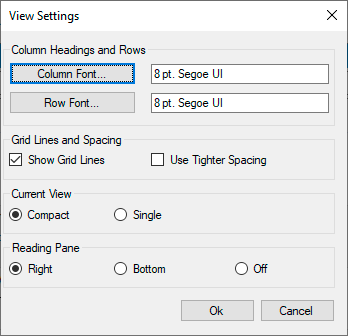
Views give you different ways to look at items in a folder. Each Outlook folder category, such as Inbox, Sent Items and Calendar, allows you to customize your view to change fonts, the organization of items, and many other settings. To customize or change your view, click on the 'View' menu and choose from the following options:
- Current View: Compact or Single
- Grid Lines and Spacing
- Reading Pane Layout
- Font or font size in the message list
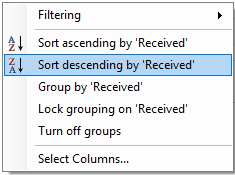
You can also sort, group or ungroup emails, show or hide columns in the message list in a way that's helpful to you. Your settings for sorting and arranging items in a Folder View apply until you change them.
Search emails
To start your search, select either a specific file or folder, or select All mail items to search across all open files, in the folder pane. Then, click on the search box at the top of the message list window.
Input the search query in the search box and click 'Enter'. After the search is performed, only matching entries are displayed. Click 'x' to clear the search results and show the contents of the entire folder.
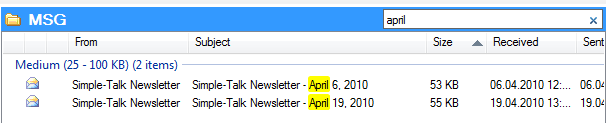
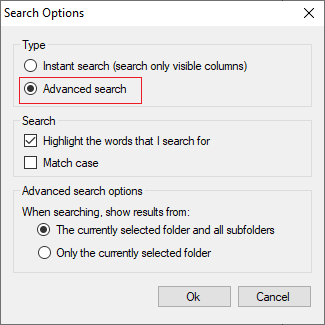
PST Walker Viewer provides you with a number of built-in search filters. To use the built-in filters, click the 'Filter' dropdown button on the toolbar. Based on your preference, you can choose search type by clicking the button on the right side of the search box:
- Instant search: Extremely fast, searching only visible columns in the message list.
- Advanced search: Boolean search and keywords search allows you to broaden, limit, and define your search criteria.
Examples of boolean operators, functions, and keywords search
| Type this | To find this |
|---|---|
| body:agenda | Items that contains agenda within its contents. |
| from:(=bobbymoore@contoso.com OR "bobby moore") | Items in which the e-mail address equals bobbymoore@contoso.com OR sender name contains bobby moore. Note the use of parentheses to group the display name and email address. |
| ALL(messagesize:<=100kb, hasattachment:yes, ATLEASTONE(attachments: "txt", attachments: "pdf")) |
Items less than 100KB in size with attachments with the extension txt or pdf. |
See more: How to search multiple .pst and .ost files without Outlook
Using Regular Expressions
When searching for a text string that contains wildcards (*, ?) or white spaces, the software automatically converts them into their equivalent regular expression patterns. Additionally, a minimal set of characters (\, +, |, {, [, (,), ^, $, ., #) in your search query is replaced with their escape codes. To match a character with special meaning such as (*, ?, "), you need to use an escape sequence prefixed with a backslash (\).
Use the @ special character to initiate a regex search with your specific regular expression pattern. The @ special character serves as a verbatim identifier, indicating that a string literal is to be interpreted verbatim.
| Type this | To find this |
|---|---|
| @"(?:\"50%\" rebate\*)" | "50%" rebate* |
License: Check the order page of your product to verify if regular expression search is available in your license plan.
Please note that while most regular-expression searches can be executed very quickly, it's important to be aware that regular expressions can be constructed in a way that consumes arbitrary amounts of time and memory during processing.
Export Function
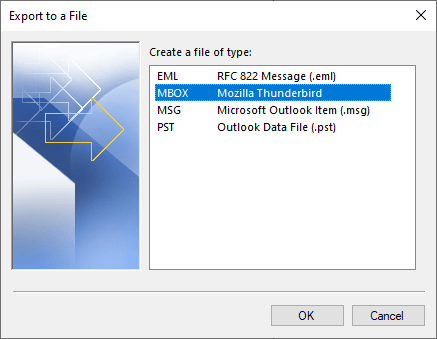
Whether you want to export emails and attachments in bulk or convert your emails, calendar, contacts, and tasks to various file formats, PST Walker Viewer offers powerful functionality for exporting and backing up items from .pst and .ost files to .pst, .mbox (Thunderbird), .msg, and .eml file formats.
See Also
Recover disappeared Rules and Alerts in Outlook
Find hidden Outlook Rules and Alerts. Create a backup copy of your rules by exporting rules to a .rwz file. Import Rules and Alerts. Supports corrupt, orphan, protected .pst and .ost files.
Email Investigations and Digital Forensics
Email messages contain numerous MAPI properties that can be useful for digital forensic analysis of emails. This article explore how to gather and analyze data related to email investigation and forensic analysis.